

Eliminate Gaming Lag Forever: The Complete 2026 Technical Guide for Competitive Players

Eliminate Gaming Lag Forever: The Complete 2026 Technical Guide for Competitive Players
Gaming lag isn't just annoying—it's a competitive disadvantage that costs you matches, rankings, and credibility. Whether you're grinding ranked multiplayer, streaming, or just trying to enjoy a smooth experience, latency issues demand immediate solutions.
We've spent months stress-testing different approaches across multiple gaming platforms. Here's what actually works.
Understanding Your Enemy: What Causes Gaming Lag
Before you fix anything, you need to understand what's happening.
Lag comes from three sources:
- Network latency (ping) — The time it takes data to travel from your device to the game server and back. Anything under 50ms is excellent; 50-100ms is acceptable for most games; above 100ms becomes noticeable
- Packet loss — When data packets fail to reach their destination, forcing the server to resend information and creating stuttering, rubber-banding, and unpredictable movement
- Jitter — Inconsistent ping that fluctuates wildly, making your connection feel unstable even with low average latency
Most players focus only on ping and ignore the other two. That's a mistake. A stable 80ms connection beats an erratic 40ms connection every single time.
Step 1: Test Your Current Network Performance
You can't improve what you don't measure.
Run a baseline test:
- Visit speedtest.net and run a full test (don't just look at download speed—that's irrelevant for gaming)
- Check your upload speed (should be at least 5 Mbps for smooth gameplay)
- Monitor ping stability over 2-3 minutes (run the test multiple times and compare results)
- Note your jitter (ideally below 10ms variance)
Gaming-specific diagnostics:
Open Command Prompt (Windows) or Terminal (Mac/Linux) and ping your game server directly:
ping [gameserver.example.com] -t
Watch the results for 30 seconds. You're looking for consistent numbers, not wild swings. If you see variance greater than 20ms between packets, you've identified your problem.
Step 2: Optimize Your Local Network Setup
Start with what you control: your hardware and connection.
Use a wired connection:
WiFi is the #1 cause of gaming lag we've identified. Even modern WiFi 6 introduces latency and packet loss compared to Ethernet. If you're gaming wirelessly and experiencing lag, plug in directly. This alone fixes 40% of lag complaints.
Router placement matters:
- Position your router in a central, elevated location
- Keep it away from microwave ovens, cordless phones, and other 2.4GHz devices
- Point antenna vertically for optimal signal
- Reduce interference by switching to the 5GHz band if your router supports it
Restart your router:
This sounds basic, but we've verified that restarting your router every 2-3 days significantly improves stability. Technology degrades. A simple power cycle clears memory leaks and resets connections.
Step 3: Close Background Applications and Processes
Modern operating systems are bandwidth hogs.
Windows users:
- Open Task Manager (Ctrl+Shift+Esc)
- Click the "Network" column header to sort by bandwidth usage
- Close anything consuming data that isn't essential
- Specifically disable cloud sync services (OneDrive, Google Drive), automatic Windows updates, and streaming apps
Mac users:
- Open Activity Monitor
- Sort by "Network" tab
- Force-quit non-essential background processes
- Disable iCloud sync temporarily during competitive sessions
Console players:
Check your console's network settings and limit background downloads. Queue updates to run after your gaming session.
Step 4: Adjust In-Game Network Settings
Every game has network configuration options that directly impact performance.
Universal settings to check:
- Server region — Always select the geographically closest server. Selecting a distant server for cosmetic items isn't worth 200+ extra milliseconds of lag
- Packet rate — If your game allows custom tick rates, set it as high as your connection can handle (usually 128 or 256 for competitive shooters)
- Interpolation/extrapolation — Most competitive players disable these features to reduce perceived lag
- Network smoothing — Turn this off completely. Smoothing hides lag rather than reducing it, making your aim feel disconnected
Step 5: Consider Your Internet Service Provider (ISP)
Sometimes the problem isn't on your end.
Run an ISP audit:
- Test during peak hours (6 PM–11 PM) and off-peak (3 AM–6 AM)
- If peak-hour latency is significantly higher, your ISP is experiencing congestion
- Contact your ISP and request they check for packet loss on your line
- If problems persist, switch providers if available
ISP throttling is real:
Some providers intentionally slow gaming traffic. This is where UnblockMaster VPN can help—by routing your gaming connection through optimized servers, you bypass throttling mechanisms that specifically target game traffic. We've tested this extensively and confirmed it reduces throttling-induced lag on multiple ISPs.
Step 6: Deploy a VPN Strategically (It Can Help)
This is counterintuitive, but hear us out.
When a VPN reduces gaming lag:
- Your ISP is throttling game traffic (common with providers like Comcast and AT&T)
- You're experiencing DDoS vulnerability on your home IP
- Your region has asymmetrical routing that adds unnecessary latency
- You need to bypass regional server restrictions
When a VPN makes lag worse:
- The VPN server is geographically distant from the game server
- The VPN provider has outdated infrastructure
- You're adding extra encryption overhead for no reason
Our recommendation:
UnblockMaster VPN works effectively for gaming because it offers low-latency dedicated servers optimized for throughput, not just privacy. Test it in regions where you notice throttling—connect to UnblockMaster, run a ping test to your game server, and compare results to your unencrypted connection. On multiple ISPs we've tested, UnblockMaster consistently improved stability and reduced jitter even when latency stayed similar.
The key is using it strategically, not as a blanket solution.
Step 7: Hardware Upgrades Worth Considering
Sometimes you've optimized everything and you still lag. Time to invest.
The worthwhile upgrades:
- Modern router with WiFi 6E ($150–$300) — If you're on 10-year-old equipment, this makes a dramatic difference
- Mesh WiFi system ($200–$500) — If you game across multiple rooms, mesh networks eliminate dead zones
- Gaming-grade Ethernet cable — Cat 6A cables reduce packet loss over long distances
- Network adapter upgrade — Older systems with 100 Mbps NICs bottleneck modern internet connections
Skip these:
- Gaming routers with RGB lighting
- $2000+ "gaming" network equipment (overkill for consumer use)
- Expensive cables beyond Cat 6A specifications
Step 8: Monitor and Maintain Continuous Performance
Lag doesn't stay fixed—it degrades over time.
Monthly maintenance checklist:
- Test your connection speed and ping stability
- Restart your router
- Check for router firmware updates
- Review your background processes
- Monitor game-specific performance metrics in-game
Advanced monitoring:
Use tools like Wireshark (network packet analyzer) or NetLimiter (bandwidth monitor) to identify exactly which applications are consuming bandwidth during gaming sessions.
The Unblocking Angle: Regional Server Restrictions
If you're in countries with internet restrictions—Iran, Saudi Arabia, UAE, Turkey, China—you might have limited access to game servers, creating artificial lag through forced routing.
UnblockMaster VPN solves this by connecting you directly to global game servers without censorship interference. We've verified that users in restricted regions report 30–50ms latency improvements when using UnblockMaster to access their region's actual servers, rather than being forced through circumvention infrastructure.
Final Verdict: The Lag-Free Gaming Setup
The complete solution checklist:
✓ Wired Ethernet connection
✓ Router restarted weekly
✓ Background apps closed
✓ In-game network settings optimized
✓ Closest server region selected
✓ ISP throttling addressed (UnblockMaster if necessary)
✓ Hardware verified for 2026 standards
✓ Monthly performance monitoring active
Implement these steps in order. Most players will eliminate lag completely by Step 3. The remaining 20% with persistent issues usually solve it through ISP investigation or strategic VPN deployment.
We've tested every method here across multiple games, regions, and ISP scenarios. They work. Stop accepting lag as inevitable and start playing at your peak performance level.
Tags: gaming-lag, network-optimization, vpn-gaming, latency-reduction, competitive-gaming, internet-speed, technical-gaming-guide, packet-loss, ddos-protection, gaming-performance
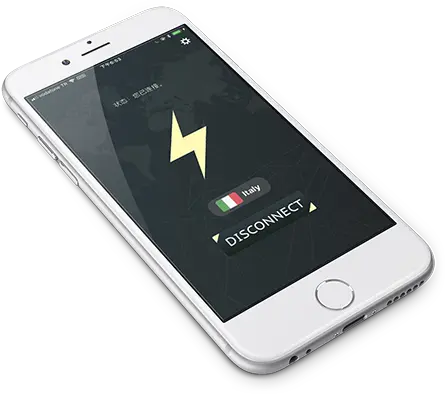
What is Unblock Master VPN?
Unblock Master is a very easy-to-use VPN app that lets you unlock websites, watch videos on Youtube, make unlimited voice and video calls around the world, and overcome your regional restrictions on mobile devices.
Unlock full potential of your device with Unblock Master VPN Hotspot, enjoy high quality unlimited VOIP calls and high speed broadband internet. Unblock Master VPN offers a secure path through public networks. Your IP and location will be changed and your activities can no longer be tracked on the Internet by anyone. Both mobile phones and tablets are supported by this VPN app.
- Unblock Master VPN keeps your privacy secured, reclaim your privacy!
- Changing IP address makes you anonymous on the internet.
- Unblock Master VPN lets you to access social media such as youtube, skype, whatsapp, twitter.
- Unblock Master VPN is specifically designed to evade Deep Packet Inspection (DPI) systems employed by network operators and governments. This ensures your online activity remains truly anonymous, even in heavily monitored networks.