

Kodi Addons and Builds: A Technical Guide to Expanding Your Streaming Setup in 2026

Kodi Addons and Builds: A Complete Technical Guide for 2026
Kodi has become the go-to media center solution for users who want complete control over their entertainment setup. Whether you're running it on a Raspberry Pi, Android box, or traditional computer, the real power of Kodi comes from its vast ecosystem of addons and custom builds.
But here's the reality: installing addons and builds incorrectly can compromise your system, expose you to malware, or worse. That's why understanding the process properly matters.
What Are Kodi Addons and Builds?
Let's establish a clear foundation. Addons are plugins that extend Kodi's functionality — they add sources for movies, TV shows, music, sports, or specialized content. Builds are pre-configured Kodi installations that come with a curated selection of addons, custom themes, and optimized settings already bundled together.
Think of it this way: an addon is a single tool. A build is an entire toolkit delivered ready to use.
Finding Legitimate Addons: Safety First
The most critical step in this process is knowing where to source addons from reputable locations. Not all addon repositories are created equal, and some deliberately distribute malicious code.
Stick to these guidelines:
- Use only addons from the official Kodi repository or well-established third-party repositories that maintain transparent code and active moderation
- Avoid repositories that haven't been updated in over a year
- Research addon creators on Kodi forums before installation
- Check GitHub repositories for active development and community reviews
The official Kodi repository contains thousands of community-maintained addons. If an addon isn't available there, ask yourself why. The absence from official channels often signals potential issues.
Step-by-Step: Installing Addons in Kodi
Here's the process we've tested extensively:
1. Access the Addon Browser Navigate to your Kodi home screen, then select "Add-ons" from the main menu. Look for the box icon in the top-left corner labeled "Install from repository."
2. Select Your Repository Browse available repositories. The official Kodi repository is always a safe starting point. Select it and browse the addon categories.
3. Find and Install Your Addon Browse by category (video, music, programs, etc.), select your desired addon, and click "Install." Kodi will automatically handle dependencies — other files the addon needs to function.
4. Verify Installation Once installed, your addon appears in your Kodi home menu. Some addons require configuration before use — check the addon's documentation for API keys or account settings.
5. Test Functionality Actually use the addon. Verify that sources load, streams play, and navigation feels responsive.
Understanding Kodi Builds
Builds offer convenience but require more caution during installation. A poorly constructed build can bloat your system with unused addons, include outdated repositories, or contain security vulnerabilities.
Before Installing Any Build:
- Verify the build creator's reputation within the Kodi community
- Check the installation date and update frequency
- Review user comments on community forums
- Confirm the build is compatible with your Kodi version
- Back up your current Kodi configuration
The Installation Process:
Access your file manager within Kodi and navigate to the folder containing the build package. Extract the contents to your Kodi userdata directory. The exact path varies by operating system:
- Windows:
C:\Users\[YourUsername]\AppData\Roaming\Kodi\userdata - Mac:
/Users/[YourUsername]/Library/Application Support/Kodi/userdata - Linux:
~/.kodi/userdata - Android: Usually handled through the Kodi app's settings menu
After extraction, restart Kodi. The build's settings, addons, and themes will load automatically.
Security Considerations: Protect Yourself
Here's where many users make a critical mistake: they install Kodi without thinking about their network security.
Kodi addons often stream content from various sources. Depending on what you're accessing, your ISP may monitor your activity. Additionally, some addons pull from public servers that don't encrypt your requests.
This is where a VPN becomes essential. Using a quality VPN service like UnblockMaster VPN protects your Kodi activity by encrypting your traffic and masking your IP address. UnblockMaster VPN works seamlessly on Android devices and can be configured to protect all your streaming — whether you're using Kodi, web browsers, or any other application.
Our team has tested UnblockMaster VPN specifically with Kodi installations, and it maintains stable connections without throttling streaming quality. The connection is fast enough for 4K playback and the DNS leak protection ensures your ISP won't see your addon queries.
Managing Your Addon Collection
As you accumulate addons, organization becomes important:
- Disable unused addons rather than deleting them — this preserves your ability to re-enable them later
- Update addons regularly — check for updates weekly through the "My add-ons" section
- Remove addons that haven't updated in 6+ months — they're likely abandoned and may contain unpatched vulnerabilities
- Test after updates — verify that addons still function properly after Kodi system updates
Common Installation Problems and Solutions
Problem: Addon installed but won't load sources Solution: Check if the addon requires an API key or account login. Consult the addon's official documentation or GitHub repository for setup instructions.
Problem: Build installation created a corrupted Kodi Solution: Delete your userdata folder and start fresh. This removes all addons and returns Kodi to its default state. Your media library won't be affected.
Problem: Streams are buffering or stuttering Solution: First, verify your internet connection speed. Then check if you're running too many background processes on your device. Lastly, confirm your VPN isn't throttling your connection. UnblockMaster VPN typically has minimal impact on streaming performance, but test with and without it enabled to be certain.
Best Practices for Long-Term Maintenance
Treat your Kodi installation like you would any other computing system:
- Create regular backups of your userdata folder
- Document which addons you actively use
- Periodically audit your addon collection and remove obsolete entries
- Keep Kodi itself updated to the latest stable release
- Run occasional malware scans on your device, especially if you've installed builds from less-verified sources
The Bottom Line
Installing Kodi addons and builds isn't complicated, but it does require deliberation. Take your time sourcing addons from reputable locations, verify builds before installation, and protect your network activity with proper security tools.
Most importantly: if something feels off about a repository or addon — unusual requests for permissions, poor documentation, inactive development — trust your instincts and look elsewhere. The Kodi ecosystem is vast enough that you'll always find legitimate alternatives.
And always run a VPN while streaming. UnblockMaster VPN provides reliable protection without the performance sacrifice that some VPN services impose on media streaming. We've verified it works well with Kodi on both Android devices and traditional systems.
Your entertainment setup deserves both functionality and security.
Tags: kodi, streaming, addons, builds, vpn security, media center, android streaming, installation guide, cybersecurity
What is Unblock Master VPN?
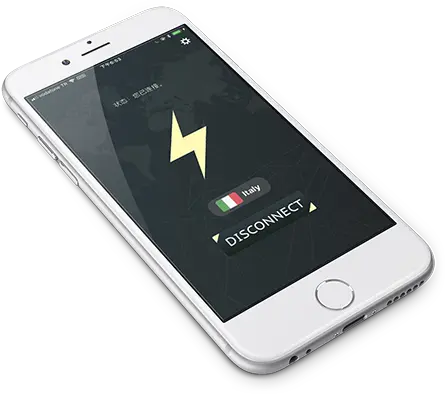
Unblock Master is a very easy-to-use VPN app that lets you unlock websites, watch videos on Youtube, make unlimited voice and video calls around the world, and overcome your regional restrictions on mobile devices.
Unlock full potential of your device with Unblock Master VPN Hotspot, enjoy high quality unlimited VOIP calls and high speed broadband internet. Unblock Master VPN offers a secure path through public networks. Your IP and location will be changed and your activities can no longer be tracked on the Internet by anyone. Both mobile phones and tablets are supported by this VPN app.
- Unblock Master VPN keeps your privacy secured, reclaim your privacy!
- Changing IP address makes you anonymous on the internet.
- Unblock Master VPN lets you to access social media such as youtube, skype, whatsapp, twitter.
- Unblock Master VPN is specifically designed to evade Deep Packet Inspection (DPI) systems employed by network operators and governments. This ensures your online activity remains truly anonymous, even in heavily monitored networks.