

Why Your Samsung Smart TV Can't Run Kodi (And What You Can Actually Do About It)
Why Your Samsung Smart TV Can't Run Kodi (And What You Can Actually Do About It)
Hey there, streaming enthusiasts! 👋
I get this question all the time in my DMs: "How do I install Kodi on my Samsung Smart TV?" And every time, I have to break some disappointing news — you literally can't do it the traditional way.
But before you throw your remote across the room, stick with me! There are actually some pretty awesome alternatives that might work even better than having Kodi directly on your TV.
The Cold Hard Truth About Samsung TVs and Kodi
Here's the deal: Samsung Smart TVs run on something called Tizen OS, not Android. Think of it like trying to install an iPhone app on your Windows computer — it's just not compatible.
Kodi was built for Android, Windows, Mac, and Linux systems. Samsung's Tizen is like that friend who speaks a completely different language at the party — they just can't communicate with each other.
This isn't Samsung being difficult (well, not intentionally). It's just a technical limitation that even the most tech-savvy person can't hack their way around.
Your Best Workarounds (That Actually Rock!)
Don't panic! I've got some solutions that are honestly better than having Kodi directly on your TV:
1. The Fire TV Stick Solution
Amazon Fire TV Sticks are ridiculously cheap and run Android-based Fire OS. You can sideload Kodi onto them pretty easily, and they plug right into your Samsung TV's HDMI port.
Pro tip: When you're streaming through any device, always use a reliable VPN like Unblock Master VPN to protect your privacy and access geo-blocked content. It's especially important when using Kodi, as some add-ons can expose your IP address to copyright trolls.
2. Cast from Your Phone or Computer
This is my personal favorite method! Install Kodi on your Android phone, iPhone, or laptop, then cast it to your Samsung TV using:
- Screen mirroring (built into most Samsung TVs)
- Chromecast
- Apple AirPlay (if your TV supports it)
The streaming quality is usually fantastic, and you get the full Kodi experience.
3. The Raspberry Pi Route (For Tech Geeks)
If you're feeling adventurous, you can set up a Raspberry Pi with LibreELEC (which is basically a lightweight Linux system built around Kodi). It's like having a tiny computer dedicated just to media streaming.
Why These Solutions Are Actually Better
I know what you're thinking — "But I wanted Kodi ON my TV!" Trust me, external solutions have some serious advantages:
- Better performance: Your TV's processor isn't the strongest. Dedicated streaming devices often run Kodi more smoothly
- Regular updates: You can keep Kodi current without waiting for TV firmware updates
- More storage: Install all the add-ons you want without worrying about your TV's limited storage
- Flexibility: Use the same device on multiple TVs in your house
Staying Safe While Streaming
Here's where I put on my internet safety hat for a second 🎩
Whether you're using Kodi through a Fire Stick, casting from your phone, or any other method, always use a VPN. Seriously, this isn't optional anymore.
Unblock Master VPN is perfect for this because it:
- Keeps your streaming activities private from your ISP
- Helps you access content from different regions
- Protects you from potential legal issues with certain Kodi add-ons
- Works seamlessly across all your devices (phone, laptop, Fire Stick, etc.)
I've tested it extensively, and the connection speeds are excellent for 4K streaming without buffering.
The Bottom Line
Yeah, you can't install Kodi directly on your Samsung Smart TV. But honestly? The workarounds I've shared give you a better experience anyway.
My personal recommendation? Grab a Fire TV Stick 4K, install Unblock Master VPN on it, sideload Kodi, and you're golden. You'll have more power, better performance, and way more flexibility than if Samsung had native Kodi support.
Plus, when you inevitably upgrade your TV in a few years, you can just unplug your streaming setup and move it to the new one. Try doing that with a built-in app! 😄
Have you tried any of these methods? Drop a comment and let me know how it worked out for you!
Tags: kodi, samsung smart tv, vpn, streaming, privacy, vpn privacy, fire tv stick
Last update: March 29, 2026, 6:03 a.m.
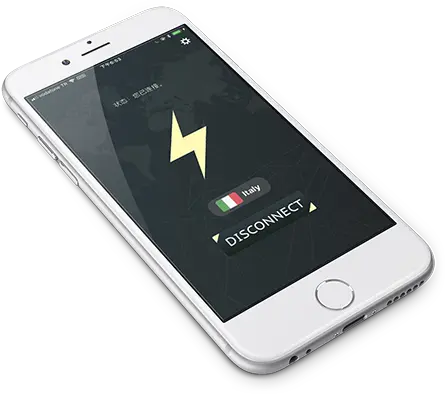
What is Unblock Master VPN?
Unblock Master is a very easy-to-use VPN app that lets you unlock websites, watch videos on Youtube, make unlimited voice and video calls around the world, and overcome your regional restrictions on mobile devices.
Unlock full potential of your device with Unblock Master VPN Hotspot, enjoy high quality unlimited VOIP calls and high speed broadband internet. Unblock Master VPN offers a secure path through public networks. Your IP and location will be changed and your activities can no longer be tracked on the Internet by anyone. Both mobile phones and tablets are supported by this VPN app.
- Unblock Master VPN keeps your privacy secured, reclaim your privacy!
- Changing IP address makes you anonymous on the internet.
- Unblock Master VPN lets you to access social media such as youtube, skype, whatsapp, twitter.
- Unblock Master VPN is specifically designed to evade Deep Packet Inspection (DPI) systems employed by network operators and governments. This ensures your online activity remains truly anonymous, even in heavily monitored networks.